BlueBubbles
BlueBubbles turns a Mac into an iMessage server. StarAgent connects to it so your phone agent can send and receive iMessages on your behalf. With Inbound Texts enabled, photo attachments are downloaded and shown to your agent before it replies.
Requirements
- A Mac (Intel or Apple Silicon) signed into iMessage, left on and connected to the internet
- The BlueBubbles Server app
- A StarAgent account with a phone number configured
Setup
StarAgent gives your BlueBubbles server a permanent URL so you never have to copy and paste tunnel URLs again.
- 1Download and install the latest BlueBubbles server DMG on your Mac.
- 2Open BlueBubbles and grant the permissions it asks for (Full Disk Access, Accessibility, etc.).
- 3Skip the Google Firebase step when prompted. It is not needed for StarAgent.
- 4On the Configuration screen, set a server password. For the proxy service, select Dynamic DNS / Custom URL from the dropdown and leave the address blank for now.
- 5Skip the Private API setup and SIP Unlock steps if prompted. These are not needed for StarAgent.
- 6In StarAgent Setup, scroll to the BlueBubbles section and flip the toggle on. StarAgent will automatically provision a permanent URL for your server (something like
bb-crimson-brave-dolphin.staragent.io). - 7Copy the URL shown in Step 1 and paste it into the BlueBubbles Dynamic DNS / Custom URL address field.
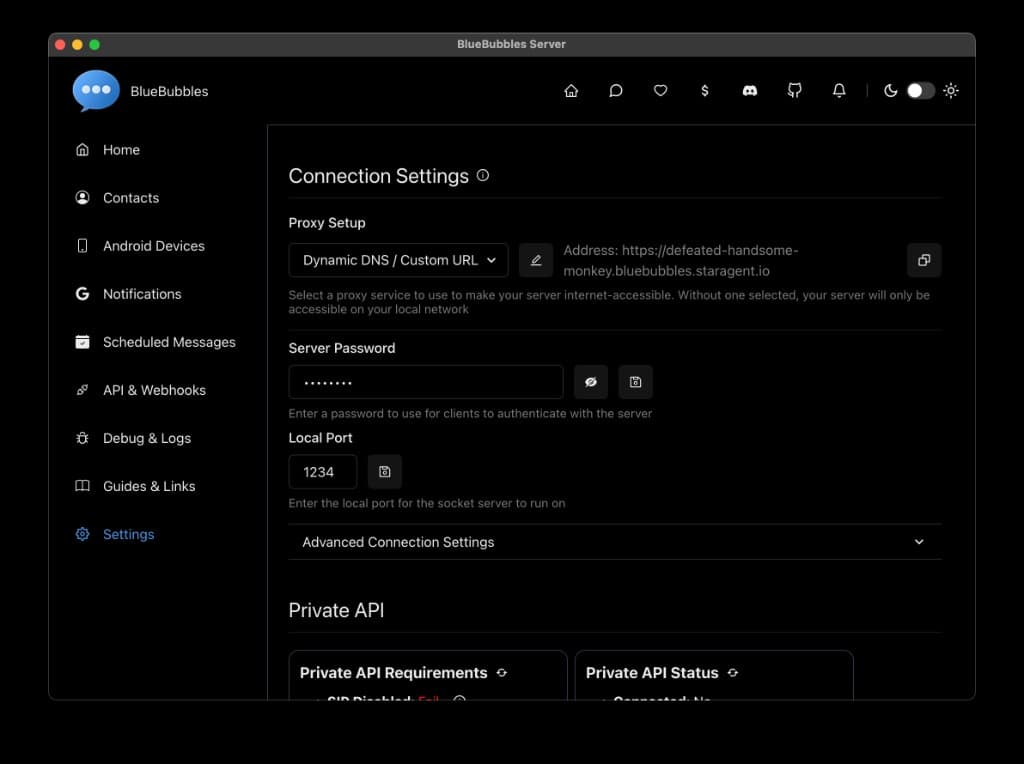
In BlueBubbles, go to Settings > Connection Settings and select "Dynamic DNS / Custom URL" from the Proxy Setup dropdown. Paste your StarAgent URL in the address field.
- 8Copy the install command from Step 2 in StarAgent Setup. This installs cloudflared, an open-source connector by Cloudflare that securely links your Mac to your StarAgent URL. Open Terminal on your Mac and follow these steps.
- a.Open Terminal (press Cmd + Space, type "Terminal", and press Enter)
- b.Paste the command (Cmd + V) and press Enter. No Mac admin password is required.
- c.Wait until the script prints that the connector is installed, then return to StarAgent Setup. The page watches for the connector and unlocks Test Connection when it comes online.
curl -sL https://staragent.io/install-cloudflared | bash -s -- YOUR_TOKENThis installs a small connector that links your Mac to your StarAgent URL. It starts automatically when you log in to this Mac user. You only need to run this once.
- 9In Step 3, enter your BlueBubbles server password and click Test Connection. StarAgent verifies the tunnel, saves your credentials, and registers the inbound webhook automatically. If it connects, you're done. With Inbound Texts enabled, unknown contacts who iMessage your agent get an automatic reply.
bb-*.staragent.io URL stays the same across restarts, reboots, and network changes. Nothing to update. To disconnect, flip the toggle off in Setup.How the connector works
The install command sets up Cloudflare Tunnel (cloudflared) as a background agent for your Mac user. It makes an outbound connection from your Mac to Cloudflare's network and routes traffic from your assigned subdomain to the BlueBubbles server running on localhost:1234.
- No ports need to be opened on your router
- Traffic is encrypted end-to-end through Cloudflare
- The connector starts automatically when you log in to this Mac user
- No Mac admin password is required for the default install
- Your tunnel token is unique to your account and cannot be used by anyone else
Uninstalling the connector
To remove the connector from your Mac, run:
If you previously installed a system service with sudo, also run sudo cloudflared service uninstall. You can also flip the BlueBubbles toggle off in StarAgent Setup, which will revoke the tunnel.
Troubleshooting
- Test Connection stays disabled. Keep the Setup tab open after you run the install command. It checks every few seconds. You can also click Check again. Confirm BlueBubbles is running on port 1234.
- Connection test fails. Make sure the BlueBubbles server is running on your Mac and that the connector is active. Run
launchctl print gui/$(id -u)/com.staragent.cloudflaredor check~/Library/Logs/StarAgent/cloudflared.log. - Messages not sending. Confirm the Mac is signed into iMessage (open Messages.app and verify). Also check that the Mac has not gone to sleep.
- Connector not starting after reboot. Log in to the same Mac user that ran the install, then re-run the install command from step 8 if needed. It will re-register the connector.